Demo: live captions in PowerPointDémo : sous-titres en direct dans PowerPoint
Before you start with PowerPoint
Requirements: PowerPoint for Microsoft 365 (desktop version), a working microphone and a quiet environment. Estimated time: 25 minutes.
What you will do:
- trying out live transcription of a spoken presentation;
- testing real-time translation (French to English);
- gauging the effect of various factors on caption quality;
- comparing monolingual captioning against live machine translation.
Setting up the tool (5 min)

- Open PowerPoint (the desktop version, not the web version).
- Go to the Slide Show tab on the ribbon.
- Tick “Always Use Subtitles”.
- Click “Subtitle Settings” to configure them.
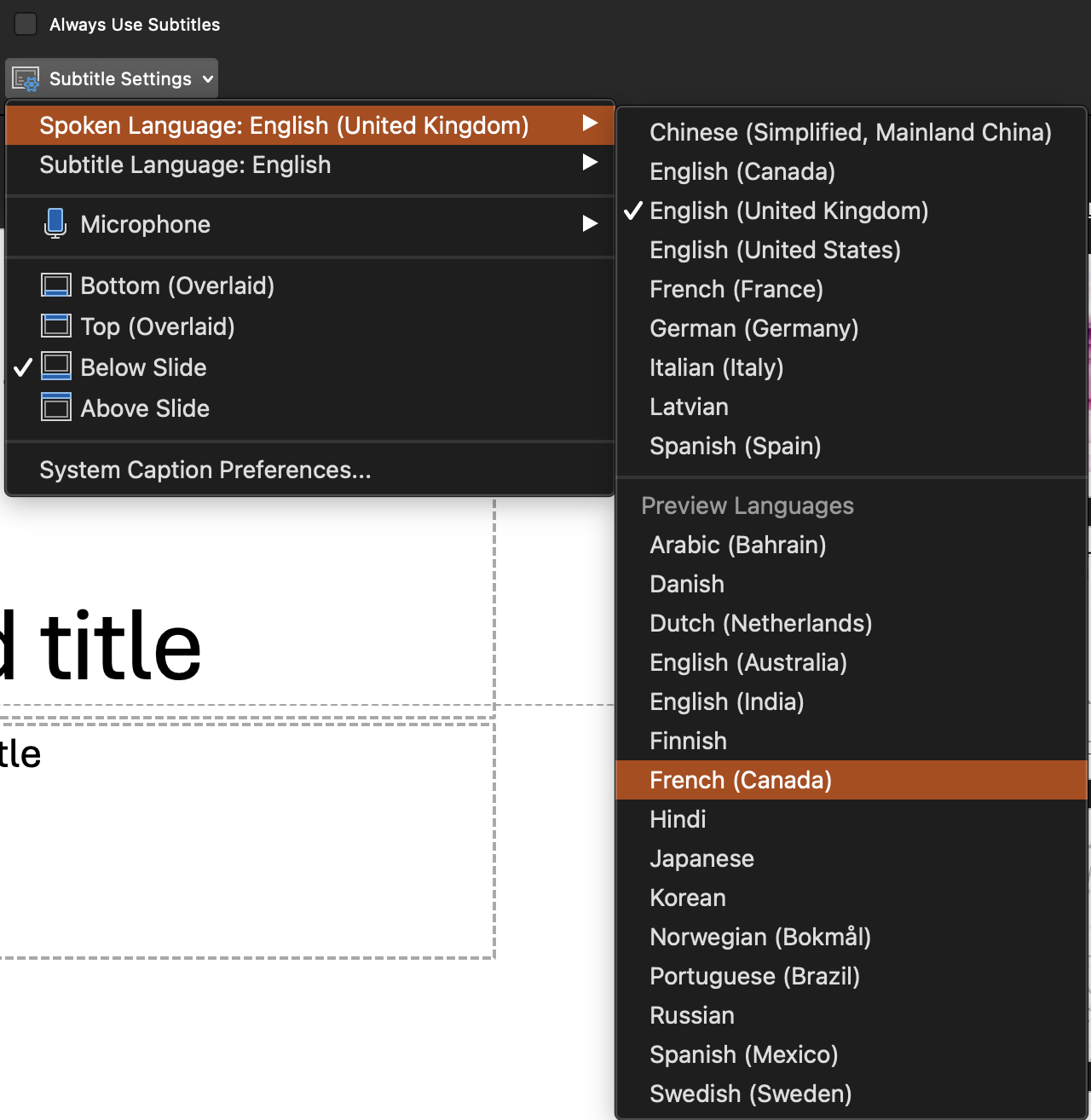
The settings to fix:
- Spoken Language: check whether “French (Canada)” is available; if not, use “French” or “French (France)”. Whether Canadian French is offered varies by version.
- Subtitle Language: the same language as the spoken one for test 1; English for test 2.
- Position: “Below Slide” (recommended).
- Microphone: select your main microphone.
Test your microphone before you start: in the system settings, make sure the input level is right, neither too low nor saturated.
Avant de commencer avec PowerPoint
Prérequis : PowerPoint pour Microsoft 365 (version bureau), un microphone fonctionnel et un environnement calme. Durée estimée : 25 minutes.
Ce que vous ferez :
- expérimenter la transcription en direct d’une présentation orale ;
- tester la traduction en temps réel (français → anglais) ;
- évaluer l’impact de différents facteurs sur la qualité des sous-titres ;
- comparer sous-titrage monolingue et traduction automatique en direct.
Configurer l’outil (5 min)
- Ouvrez PowerPoint (version bureau, pas la version web).
- Allez à l’onglet Diaporama (Slide Show) dans le ruban.
- Cochez « Toujours utiliser les sous-titres » (Always Use Subtitles).
- Cliquez sur « Paramètres de sous-titres » (Subtitle Settings) pour configurer.
Paramètres à configurer :
- Langue parlée (Spoken Language) : vérifiez si « Français (Canada) » est disponible ; sinon, utilisez « Français » ou « Français (France) ». La disponibilité du français canadien varie selon les versions.
- Langue des sous-titres (Subtitle Language) : la même langue que la langue parlée pour le test 1 ; l’anglais pour le test 2.
- Position : « Sous la diapositive » (Below Slide, recommandé).
- Microphone : sélectionnez votre micro principal.
Testez votre microphone avant de commencer : dans les paramètres du système, assurez-vous que le niveau d’entrée est adéquat, ni trop faible ni saturé.
Sources
- Microsoft Support (n.d.). Present with real-time, automatic captions or subtitles in PowerPoint. https://support.microsoft.com/en-us/office/present-with-real-time-automatic-captions-or-subtitles-in-powerpoint-68d20e49-aec3-456a-939d-34a79e8ddd5f
Sources
- Microsoft Support (n.d.). Present with real-time, automatic captions or subtitles in PowerPoint. https://support.microsoft.com/en-us/office/present-with-real-time-automatic-captions-or-subtitles-in-powerpoint-68d20e49-aec3-456a-939d-34a79e8ddd5f