PrintedImprimé le·aylart.github.io/learn·
CC BY-NC 4.0
Speech technology: types, quality and consequencesLes technologies de la parole : types, qualité et conséquences
Written alternately in EN and FR, translation partly generated in both directions.
Rédigé en alternance en EN et en FR, traduction en partie générée dans les deux sens.
Three families of speech technologyTrois familles de technologies de la parole
What changed recently
Three developments have made speech technology more viable as an alternative
to typing in professional work:
A jump in quality. Models trained at scale, such as Whisper (Radford
et al., 2023, trained on 680,000 hours of audio), come close to human
accuracy on clear audio. The previous generation of systems needed to be
trained per speaker and tolerated noise badly.
Free and built in. Word, PowerPoint and Google Docs include dictation at
no extra cost; buying specialized software such as Dragon and training it for
hours is no longer necessary, though it can still mean noticeably higher
quality or more functionality.
Multilingual coverage. A usably good performance can now be obtained
for an increasing number of languages, whereas this used to only be the
case for US English.
From speech to text
Input: audio.
Output: written text.
It is what you most commonly think of as speech technology, and what you use
to:
Input: written text.
Output: audio.
It is what you use for:
screen readers, for accessibility;
audiobook production;
video dubbing;
voice assistance (GPS, virtual assistants).
Representative technologies: Google TTS, Amazon Polly, Microsoft Azure TTS,
ElevenLabs.Product pages: Google Cloud Text-to-Speech,
Amazon Polly, Azure AI Speech, ElevenLabs.
This module does not go into it in detail, but it is an
essential component of speech-to-speech translation systems.
From speech to speech
Input: audio in language A.
Output: audio in language B.
It is what you use for:
automatic interpreting in a meeting;
translating a video with dubbing.
Representative technologies: KUDO AI, HeyGen, the Microsoft Teams
interpreter, Google Translate in conversation mode.Product pages:
KUDO, HeyGen, Google Translate.
Sources
Radford, A., Kim, J. W., Xu, T., Brockman, G., McLeavey, C., & Sutskever, I. (2023). Robust speech recognition via large-scale weak supervision. Proceedings of the 40th International Conference on Machine Learning (PMLR 202), 28492–28518. https://proceedings.mlr.press/v202/radford23a.html
Ce qui a changé récemment
Trois évolutions font des technologies de la parole une solution de rechange
plus viable à la frappe dans le travail professionnel :
Un saut qualitatif. Les modèles entraînés à grande échelle, comme
Whisper (Radford et al., 2023, entraîné sur 680 000 heures d’audio),
approchent la précision humaine sur de l’audio clair. Les systèmes de la
génération précédente exigeaient un entraînement par locuteur et toléraient
mal le bruit.
Gratuité et intégration. Word, PowerPoint et Google Docs intègrent la
dictée sans frais supplémentaires ; il n’est plus nécessaire d’acheter un
logiciel spécialisé comme Dragon et de l’entraîner pendant des heures, même
si cela peut encore apporter une qualité nettement meilleure ou plus de
fonctionnalités.
Couverture multilingue. On obtient maintenant une performance utilisable
pour un nombre croissant de langues, alors que ce n’était longtemps le cas
que pour l’anglais états-unien.
De la parole au texte
Entrée : audio.
Sortie : texte écrit.
C’est ce à quoi on pense d’abord quand on parle de technologies de la parole.
Exemples d’utilisation :
dicter un texte ;
afficher des sous-titres en direct pendant une présentation ;
Technologies représentatives : Google TTS, Amazon Polly, Microsoft Azure
TTS, ElevenLabs.Pages des produits : Google Cloud
Text-to-Speech, Amazon Polly, Azure AI Speech,
ElevenLabs. Ce module ne l’explore pas en détail, mais elle est une
composante essentielle des systèmes de traduction parole à parole.
De la parole à la parole
Entrée : audio en langue A.
Sortie : audio en langue B.
Exemples d’utilisation :
interprétation automatique en réunion ;
traduction d’une vidéo avec doublage.
Technologies représentatives : KUDO AI, HeyGen, l’interprète de Microsoft
Teams, Google Traduction en mode conversation.Pages des
produits : KUDO, HeyGen,
Google Traduction.
Sources
Radford, A., Kim, J. W., Xu, T., Brockman, G., McLeavey, C., & Sutskever, I. (2023). Robust speech recognition via large-scale weak supervision. Proceedings of the 40th International Conference on Machine Learning (PMLR 202), 28492–28518. https://proceedings.mlr.press/v202/radford23a.html
Translating speech: cascade or end-to-endTraduire la parole : en cascade ou de bout en bout
Advantages: a modular architecture; each stage can use the best model
available, and each stage produces a result you can inspect and correct
before the next one runs. When you are evaluating a system rather than
working under time pressure, that is what lets you see which stage is
failing and needs work.
Drawbacks: unless you intervene, each stage works from what the one
before it produced, so errors accumulate. Machine translation that is
excellent on written text does worse here, because what it is translating is
a transcription that may already be wrong. Latency grows with each stage,
and prosodic elements (intonation, emphasis) are lost on the way through the
text.
The end-to-end approach
FR audio → [single model] → EN audio
A single model turns the source audio directly into target audio.
Advantages: the voice and the style can be preserved; lower latency.
Drawbacks: still under development, and available for few language
pairs. Training one directly takes hundreds of hours of the same utterances
spoken in both languages, which exists for few pairs, where a cascade reuses
recognition, translation and synthesis trained separately (Diwan et al.,
2024).
Most current consumer tools work as a cascade; voice cloning still lets them
keep a voice close to the original.
Sources
Diwan, A., Srinivasan, A., Harwath, D., & Choi, E. (2024). Textless speech-to-speech translation with limited parallel data. Findings of the Association for Computational Linguistics: EMNLP 2024, 16302–16311. https://aclanthology.org/2024.findings-emnlp.951/
Avantages : architecture modulaire ; chaque étape peut utiliser le
meilleur modèle disponible, et chaque étape produit un résultat qu’on peut
examiner et corriger avant que la suivante s’exécute. Quand on évalue un
système plutôt que de travailler sous la pression du temps, c’est ce qui
permet de voir quelle étape échoue et demande du travail.
Inconvénients : à moins d’intervenir, chaque étape travaille à partir de
ce que la précédente a produit, si bien que les erreurs s’additionnent. Une
traduction automatique excellente sur du texte écrit fera moins bien ici,
parce que ce qu’elle traduit est une transcription parfois déjà fautive. La
latence augmente à chaque étape, et les éléments prosodiques (intonation,
emphase) se perdent au passage par le texte.
L’approche de bout en bout
Audio FR → [modèle unique] → Audio EN
Un seul modèle transforme directement l’audio source en audio cible.
Avantages : préservation possible de la voix et du style ; latence
réduite.
Inconvénients : encore en développement, et disponible pour peu de
paires de langues. L’entraîner directement demande des centaines d’heures des
mêmes énoncés prononcés dans les deux langues, ce qui n’existe que pour
quelques paires, alors qu’une cascade réutilise la reconnaissance, la
traduction et la synthèse entraînées séparément (Diwan et al., 2024).
La plupart des outils grand public actuels fonctionnent en cascade ; le
clonage vocal leur permet malgré tout de conserver une voix proche de
l’original.
Sources
Diwan, A., Srinivasan, A., Harwath, D., & Choi, E. (2024). Textless speech-to-speech translation with limited parallel data. Findings of the Association for Computational Linguistics: EMNLP 2024, 16302–16311. https://aclanthology.org/2024.findings-emnlp.951/
Measuring speech recognition qualityMesurer la qualité de la reconnaissance
Word error rate
To evaluate a recognition system objectively, researchers and practitioners
mainly use word error rate.
The metric counts three kinds of error:
Substitutions: one word replaced by another (“contract” becomes
“contact”);
Deletions: a word of the reference missing from the transcription;
Insertions: a word added that was not in the original.
A WER of 5% means that on average one word in twenty is wrong. But errors do
not all have the same impact. Take a text of 20 words:
Original: “The contract stipulates an amount of twenty million dollars,
payable before 15 March 2025, and late payment will incur penalties.”
Transcription: “The contract stipulates an amount of twenty billion
dollars, payable before 15 March 2025, and late payment will incur
penalties.”
A single error, so a WER of 5%, and the meaning of the document changes
completely. WER measures how often errors occur, not how much they matter.
This is why numerical metrics are not enough on their own: the impact of the
errors has to be judged in the professional setting they are meant for. Weighting
errors by importance, on named entities for instance, predicts how useful a
system will be for a given task better than a raw WER does (Galibert et al.,
2016).
Performance by condition
Current systems reach very different levels depending on the conditions
(Radford et al., 2023; Koenecke et al., 2020):
Ideal conditions (clear audio, a single speaker, standard
vocabulary): text that is generally readable with few visible errors; it
still has to be reread for figures, proper nouns and acronyms.
Real-world conditions (background noise, accents, terminology): quality
fluctuates a great deal.
Difficult conditions (several speakers, heavy noise, specialized
language): errors become frequent and unstable. Assigning speaker turns
remains fragile, and terminology and names go on causing trouble despite
the progress made.
Sources
Galibert, O., Camelin, N., Deléglise, P., & Rosset, S. (2016). Estimation de la qualité d'un système de reconnaissance de la parole pour une tâche de compréhension. Actes de la conférence conjointe JEP-TALN-RECITAL 2016, vol. 1, 274–282. https://aclanthology.org/2016.jeptalnrecital-jep.31/
Koenecke, A., Nam, A., Lake, E., Nudell, J., Quartey, M., Mengesha, Z., Toups, C., Rickford, J. R., Jurafsky, D., & Goel, S. (2020). Racial disparities in automated speech recognition. Proceedings of the National Academy of Sciences, 117(14), 7684–7689. https://doi.org/10.1073/pnas.1915768117
Radford, A., Kim, J. W., Xu, T., Brockman, G., McLeavey, C., & Sutskever, I. (2023). Robust speech recognition via large-scale weak supervision. Proceedings of the 40th International Conference on Machine Learning (PMLR 202), 28492–28518. https://proceedings.mlr.press/v202/radford23a.html
Le taux d’erreur de mots
Pour évaluer objectivement un système de reconnaissance, chercheurs et
professionnels utilisent principalement le taux d’erreur de mots.
La métrique compte trois types d’erreurs :
Substitutions : un mot remplacé par un autre (« contrat » → « contact ») ;
Suppressions : un mot de la référence absent de la transcription ;
Insertions : un mot ajouté qui n’était pas dans l’original.
Un WER de 5 % veut dire qu’en moyenne, un mot sur vingt est erroné. Mais
toutes les erreurs n’ont pas le même impact. Exemple avec un texte de
20 mots :
Original : « Le contrat stipule un montant de vingt millions de
dollars, payable avant le 15 mars 2025, sous peine de pénalités. »
Transcription : « Le contrat stipule un montant de vingt milliards
de dollars, payable avant le 15 mars 2025, sous peine de
pénalités. »
Une seule erreur, donc un WER de 5 %, et le sens du document change
complètement. Le WER mesure la fréquence des erreurs, pas leur gravité.
C’est pourquoi les métriques chiffrées ne suffisent pas : il faut évaluer
l’impact des erreurs dans le contexte professionnel visé. Pondérer les erreurs
selon leur importance, par exemple sur les entités nommées, prédit mieux
l’utilité d’un système pour une tâche donnée qu’un WER brut (Galibert et al.,
2016).
La performance selon les conditions
Les systèmes actuels atteignent des niveaux très différents selon les
conditions (Radford et al., 2023 ; Koenecke et al., 2020) :
Conditions optimales (audio clair, locuteur unique, vocabulaire
standard) : texte en général lisible avec peu d’erreurs visibles ; une
relecture reste nécessaire pour les chiffres, les noms propres et les
sigles.
Conditions difficiles (plusieurs locuteurs, bruit important, langue
spécialisée) : les erreurs deviennent fréquentes et instables.
L’attribution des tours de parole reste fragile, et la terminologie et
les noms continuent de poser problème malgré les progrès.
Sources
Galibert, O., Camelin, N., Deléglise, P., & Rosset, S. (2016). Estimation de la qualité d'un système de reconnaissance de la parole pour une tâche de compréhension. Actes de la conférence conjointe JEP-TALN-RECITAL 2016, vol. 1, 274–282. https://aclanthology.org/2016.jeptalnrecital-jep.31/
Koenecke, A., Nam, A., Lake, E., Nudell, J., Quartey, M., Mengesha, Z., Toups, C., Rickford, J. R., Jurafsky, D., & Goel, S. (2020). Racial disparities in automated speech recognition. Proceedings of the National Academy of Sciences, 117(14), 7684–7689. https://doi.org/10.1073/pnas.1915768117
Radford, A., Kim, J. W., Xu, T., Brockman, G., McLeavey, C., & Sutskever, I. (2023). Robust speech recognition via large-scale weak supervision. Proceedings of the 40th International Conference on Machine Learning (PMLR 202), 28492–28518. https://proceedings.mlr.press/v202/radford23a.html
Speed vs. quality: live, offline and simultaneousVitesse contre qualité : en direct, en différé et en simultané
In speech recognition
Recognition systems can work in two modes, and the mode affects
performance:
Live (real time): the system transcribes as you speak, favouring speed
at the cost of accuracy. Without the full context of the sentence, it makes
more errors, especially on homophones and punctuation.
Offline: the system analyzes the complete recording before transcribing,
which allows better accuracy through the availability of surrounding
context.
The simultaneous task is where the trade-off is measured. Systems are sorted
into a low-latency group of 0 to 2 seconds and a high-latency one of 2 to 4,
and the longer a system waits for more context, the better the translation and
the later it arrives (Adelani et al., 2026).
Sources
Adelani, D. I., Agostinelli, V., Anastasopoulos, A., Bentivogli, L., Bojar, O., et al. (2026). Speech translation and metrics in 2026: Findings of the IWSLT campaign. Proceedings of the 23rd International Conference on Spoken Language Translation (IWSLT 2026), 336–422. https://aclanthology.org/2026.iwslt-1.39/
En reconnaissance de la parole
Les systèmes de reconnaissance peuvent fonctionner selon deux modes qui
influencent la performance :
En direct (temps réel) : le système transcrit au fur et à mesure, en
privilégiant la rapidité au détriment de la précision. Sans le contexte
complet de la phrase, il fait plus d’erreurs, en particulier sur les
homophones et la ponctuation.
En différé : le système analyse l’enregistrement complet avant de
transcrire, ce qui permet une meilleure précision grâce à la disponibilité
du contexte environnant.
C’est la tâche de traduction simultanée qui mesure le compromis. Les systèmes
sont répartis entre un régime de faible latence, de 0 à 2 secondes, et un
régime de latence élevée, de 2 à 4, et plus un système attend pour disposer de
contexte, meilleure est la traduction et plus elle arrive tard (Adelani et
al., 2026).
Sources
Adelani, D. I., Agostinelli, V., Anastasopoulos, A., Bentivogli, L., Bojar, O., et al. (2026). Speech translation and metrics in 2026: Findings of the IWSLT campaign. Proceedings of the 23rd International Conference on Spoken Language Translation (IWSLT 2026), 336–422. https://aclanthology.org/2026.iwslt-1.39/
What affects speech recognition qualityCe qui influence la qualité de la reconnaissance
Three groups of factors
The differences in performance from one situation to another are not
random. Three groups of factors account for them, and most of them leave you
some room to act.
Signal quality
Factor
Effect on performance
What you can do
Microphone quality and placement
Wrong distance or angle: intelligibility drops, consonants get swallowed
Microphone close to the mouth (15 to 20 cm); avoid rubbing and plosives; run an audio test
Background noise
Masks the useful sounds: the error rate rises
Headset or directional microphone; quiet room; software noise reduction
Room reverberation
The echo blurs word and sentence boundaries
A room with little reverberation; curtains or panels; speak facing the microphone
Several speakers, overlapping
Imperfect diarization; segments cut short where voices overlap
A stable connection, wired if possible; limit competing applications
Assigning each segment to the right speaker remains an open problem,
particularly where voices overlap (O’Shaughnessy, 2025): expect to carefully
reread any transcription of a meeting.
Linguistic content and style
Factor
Effect on performance
What you can do
Language varieties and accents
Performance varies by variety; phonetic confusions
Careful articulation; where possible, a model adapted to the variety
Unstable language detection; mixed spellings and terminology
Fix the input language if possible; flag the passages in the other language
Speaking rate and style
Too fast or unclear: substitutions; hesitations: needless insertions
A moderate pace; clean pauses; short sentences
Automatic segmentation and punctuation
Sentence boundaries and punctuation sometimes wrong
Mark the end of a sentence with a short pause; reread punctuation and capitalization
The differences between speakers are not symmetrical: Koenecke et al. (2020)
document, across five commercial systems, an error rate almost twice as high
for African American speakers as for white speakers. Testing a system with
the accents and varieties it will actually be used with is part of evaluating it.
Processing mode and the chain
Factor
Effect on performance
What you can do
Live or offline
Live: fast display but more errors; offline: cleaner output after a delay
Choose according to your priority; revise offline where you can
Check the transcription before translating; turn translation off where it serves no purpose
End-to-end approach
Often smoother, but quality is uneven across languages and domains
Keep it for straightforward cases; confirm with samples; plan for a human rereading
Sources
Koenecke, A., Nam, A., Lake, E., Nudell, J., Quartey, M., Mengesha, Z., Toups, C., Rickford, J. R., Jurafsky, D., & Goel, S. (2020). Racial disparities in automated speech recognition. Proceedings of the National Academy of Sciences, 117(14), 7684–7689. https://doi.org/10.1073/pnas.1915768117
O'Shaughnessy, D. (2025). Speaker diarization: A review of objectives and methods. Applied Sciences, 15(4), 2002. https://doi.org/10.3390/app15042002
Trois groupes de facteurs
Les écarts de performance observés d’une situation à l’autre ne sont pas
aléatoires. Trois groupes de facteurs les expliquent, et la plupart offrent
une marge de manœuvre concrète.
La qualité du signal
Facteur
Impact sur la performance
Solutions possibles
Qualité et placement du micro
Distance ou orientation inadéquates : chute d’intelligibilité, consonnes avalées
Micro près de la bouche (15 à 20 cm) ; éviter frottements et plosives ; faire un test audio
Bruit ambiant
Masque les sons utiles : hausse du taux d’erreur
Casque ou micro directionnel ; environnement calme ; réduction de bruit logicielle
Réverbération de la pièce
L’écho brouille les frontières de mots et de phrases
Pièce peu réverbérante ; rideaux ou panneaux ; parler face au micro
Plusieurs locuteurs, chevauchements
Diarisation imparfaite ; segments tronqués quand les voix se superposent
Microphones individuels ; tours de parole clairs ; relecture ciblée
Mauvaise connexion réseau et compression (en direct)
Artefacts, mots manqués
Connexion stable, filaire si possible ; limiter les applications concurrentes
Attribuer chaque segment au bon locuteur reste un problème ouvert,
particulièrement quand les voix se chevauchent (O’Shaughnessy, 2025) :
comptez-y une relecture attentive pour toute transcription de réunion.
Le contenu linguistique et le style
Facteur
Impact sur la performance
Solutions possibles
Variétés de langue et accents
Performance variable selon les variétés ; confusions phonétiques
Articulation soignée ; si possible, modèle adapté à la variété
Détection de langue instable ; mélange de graphies et de terminologies
Fixer la langue d’entrée si possible ; signaler les passages dans l’autre langue
Débit et style de parole
Trop rapide ou flou : substitutions ; hésitations : insertions inutiles
Vitesse modérée ; pauses nettes ; phrases courtes
Segmentation et ponctuation automatiques
Frontières de phrase et ponctuation parfois erronées
Marquer la fin de phrase par une courte pause ; relire ponctuation et casse
Les écarts selon les locuteurs ne sont pas symétriques : Koenecke et al.
(2020) documentent, pour cinq systèmes commerciaux, un taux d’erreur
presque deux fois plus élevé pour les locuteurs afro-américains que pour
les locuteurs blancs. Tester un système avec les accents et variétés
réellement visés fait partie de l’évaluation.
Le mode de fonctionnement et la chaîne de traitement
Facteur
Impact sur la performance
Solutions possibles
En direct ou en différé
En direct : affichage rapide mais plus d’erreurs ; en différé : rendu plus propre avec un délai
Choisir selon la priorité ; réviser en différé si possible
Chaîne en cascade (reconnaissance → traduction → synthèse)
Propagation des erreurs d’une étape à l’autre
Vérifier la transcription avant traduction ; désactiver la traduction si inutile
Approche de bout en bout
Souvent plus fluide, mais qualité inégale selon les langues et domaines
Réserver aux cas simples ; confirmer par échantillons ; prévoir une relecture humaine
Sources
Koenecke, A., Nam, A., Lake, E., Nudell, J., Quartey, M., Mengesha, Z., Toups, C., Rickford, J. R., Jurafsky, D., & Goel, S. (2020). Racial disparities in automated speech recognition. Proceedings of the National Academy of Sciences, 117(14), 7684–7689. https://doi.org/10.1073/pnas.1915768117
O'Shaughnessy, D. (2025). Speaker diarization: A review of objectives and methods. Applied Sciences, 15(4), 2002. https://doi.org/10.3390/app15042002
Speech technology in the language professionsLes technologies de la parole dans les professions langagières
Three use cases
Translation
Dictated translation. Dictating a first draft can be faster than typing
it, and it lowers the risk of musculoskeletal disorders. Wang and Sun (2023)
found, however, that the time saved on drafting moved to revision, so a net
saving is not guaranteed. Part of that revision repairs the system and part
of it is the translator’s own: the study ties revision time to sight
translation skill, that is, to how readily a finished sentence can be
produced on the spot, where writing lets you shape it as you go. Only the
first part shrinks as recognition improves, and it has improved since 2023,
so the balance may have shifted, which is not the same as saying the finding
is no longer true.
Watch for: numbers, proper nouns, punctuation and capitalization remain the
most likely errors in a dictated transcription.
Interpreting
Computer-assisted interpreting (CAI) tools. What any one of them does
varies, and no tool has every feature, but between them they cover the whole
assignment rather than its terminology alone. Before it, a tool may pull
terms out of the documents you are sent, build a glossary from them, drill
you on it, and propose translations for terms in context. During it, the
glossary is a glance away on a second screen or a tablet, and some tools
also listen to the original speech: transcribing it, highlighting numbers as
they are spoken, and surfacing the glossary entry for a term as it comes up.
Where the audio is processed, on your own machine or in the cloud, is a
choice some of them let you make, and it decides what leaves a confidential
meeting. InterpretBank is one of the established ones (Fantinuoli,
2016).interpretbank.com
Automatic subtitling. Educational and promotional video is captioned
automatically, which is now ordinary rather than exceptional, because in
several jurisdictions accessibility is a legal requirement rather than a
courtesy. Ontario is a concrete case: since 2021, public sector bodies and
organisations of fifty or more people must conform to WCAG 2.0 Level AA on their
websites, which requires captions on prerecorded video. Live captions are
explicitly excluded from that requirement, which is worth knowing before
assuming the two are treated
alike.Ontario’s guidance: How to make websites
accessible.
Video translation with dubbing. The speaker’s voice can be cloned so
that the translated track still sounds like them, and some tools go further
and resynchronize the lips onto the target language. Where both are done,
the result plays as though the video had been recorded in that language
rather than translated into it.
Quality remains uneven, so ideally a person checks the output before anything
is published.
A critical perspective
Not necessarily faster. Speed of dictation does not guarantee a net gain in
productivity.
Metrics vs. real impact. An “acceptable” error rate can hide serious
errors on amounts, names or acronyms; qualitative evaluation in context
remains indispensable.
Fairness and inclusion. Systems have to be tested with the accents and
language varieties they will actually be used with: Koenecke et al. (2020)
document marked differences in performance between groups of speakers.
Data confidentiality. Distinguish the systems that process audio
locally, on the device, from those that send it to remote servers; that
choice decides what happens to the texts you dictate and the voices you
record.
Sources
Fantinuoli, C. (2016). InterpretBank: Redefining computer-assisted interpreting tools. Proceedings of the 38th Conference Translating and the Computer, London, 42–52. https://aclanthology.org/2016.tc-1.5/
Koenecke, A., Nam, A., Lake, E., Nudell, J., Quartey, M., Mengesha, Z., Toups, C., Rickford, J. R., Jurafsky, D., & Goel, S. (2020). Racial disparities in automated speech recognition. Proceedings of the National Academy of Sciences, 117(14), 7684–7689. https://doi.org/10.1073/pnas.1915768117
Wang, L., & Sun, S. (2023). Dictating translations with automatic speech recognition: Effects on translators' performance. Frontiers in Psychology, 14, 1108898. https://doi.org/10.3389/fpsyg.2023.1108898
Trois cas d’usage
Traduction
Dictée de traduction. Dicter un premier jet peut aller plus vite que le
taper, et réduit les risques de troubles musculosquelettiques. Wang et Sun
(2023) ont cependant constaté que le temps gagné à la rédaction repartait
dans la révision, si bien que le gain net n’est pas garanti. Une partie de
cette révision répare le système, l’autre revient au traducteur : l’étude
relie le temps de révision à l’aptitude à la traduction à vue, c’est-à-dire
à la facilité avec laquelle une phrase aboutie se formule sur-le-champ, là
où l’écrit permet de la façonner en cours de route. Seule la première partie
diminue à mesure que la reconnaissance progresse, et elle a progressé depuis
2023 : l’équilibre a pu se déplacer, ce qui ne veut pas dire que le constat
ne tient plus.
Points de vigilance : les nombres, les noms propres, la ponctuation et la
casse restent les erreurs les plus probables d’une transcription dictée.
Interprétation
Outils d’interprétation assistée par ordinateur (angl.
computer-assisted interpreting, CAI). Ce que fait tel ou tel outil
varie, et aucun ne réunit toutes les fonctions, mais ensemble elles
accompagnent toute la prestation et pas seulement sa terminologie. En amont,
un outil peut extraire les termes des documents reçus, en constituer un
glossaire, vous le faire mémoriser et proposer des traductions de termes en
contexte. Pendant la prestation, le glossaire se consulte d’un coup d’œil
sur un second écran ou une tablette, et certains outils écoutent aussi le
discours original : ils le transcrivent, mettent les nombres en évidence à
mesure qu’ils sont prononcés et font apparaître l’entrée de glossaire d’un
terme quand il arrive. Le lieu du traitement de l’audio, votre machine ou le
nuage, est un choix que certains vous laissent, et il décide de ce qui sort
d’une réunion confidentielle. InterpretBank est l’un des plus établis
(Fantinuoli,
2016).interpretbank.com
Ces outils sont conçus pour soutenir une interprète plutôt que pour la
remplacer, ce qui ne veut pas dire qu’aucun remplacement n’a lieu.
Sous-titrage automatique. Les vidéos éducatives et promotionnelles se
sous-titrent automatiquement, ce qui est devenu courant plutôt
qu’exceptionnel, parce que plusieurs législations font de l’accessibilité
une obligation et non une politesse. L’Ontario en est un cas concret :
depuis 2021, les organismes du secteur public et les organisations de
cinquante personnes ou plus doivent respecter le niveau AA des WCAG 2.0 sur
leurs sites, ce qui exige le sous-titrage des vidéos préenregistrées. Le
sous-titrage en direct est explicitement exclu de cette obligation, ce qui
vaut la peine d’être su avant de supposer que les deux sont traités
pareil.Les indications de l’Ontario : How to make websites
accessible.
Traduction vidéo avec doublage. La voix de l’oratrice peut être clonée
pour que la piste traduite lui ressemble encore, et certains outils vont
plus loin en resynchronisant les lèvres sur la langue cible. Quand les deux
sont faits, le résultat passe comme une vidéo tournée dans cette langue
plutôt que traduite vers elle.
La qualité reste variable, si bien qu’idéalement une personne vérifie le
résultat avant toute diffusion.
Perspective critique
Pas nécessairement plus rapide. La vitesse de dictée ne garantit pas un gain
de productivité net.
Métriques contre impact réel. Un taux d’erreur « acceptable » peut masquer
des erreurs graves sur les montants, les noms ou les sigles ;
l’évaluation qualitative en contexte reste indispensable.
Équité et inclusion. Les systèmes doivent être testés avec les accents
et variétés linguistiques réellement visés : Koenecke et al. (2020)
documentent des écarts de performance marqués selon les groupes de
locuteurs.
Confidentialité des données. Distinguez les systèmes qui traitent
l’audio localement, sur l’appareil, de ceux qui l’envoient sur des
serveurs distants ; le choix engage la confidentialité des textes
dictés et des voix enregistrées.
Sources
Fantinuoli, C. (2016). InterpretBank: Redefining computer-assisted interpreting tools. Proceedings of the 38th Conference Translating and the Computer, London, 42–52. https://aclanthology.org/2016.tc-1.5/
Koenecke, A., Nam, A., Lake, E., Nudell, J., Quartey, M., Mengesha, Z., Toups, C., Rickford, J. R., Jurafsky, D., & Goel, S. (2020). Racial disparities in automated speech recognition. Proceedings of the National Academy of Sciences, 117(14), 7684–7689. https://doi.org/10.1073/pnas.1915768117
Wang, L., & Sun, S. (2023). Dictating translations with automatic speech recognition: Effects on translators' performance. Frontiers in Psychology, 14, 1108898. https://doi.org/10.3389/fpsyg.2023.1108898
🔒 Speech: exercisesParole : exercicesis course material (TRA6008). Open it on the site to include it here.est réservé au cours (TRA6008). Ouvrez-le sur le site pour l'inclure ici.
Speech: exercisesParole : exercices
Written alternately in EN and FR, translation partly generated in both directions.
Rédigé en alternance en EN et en FR, traduction en partie générée dans les deux sens.
Demo: dictation in WordDémo : la dictée dans Word
Before you start with Word
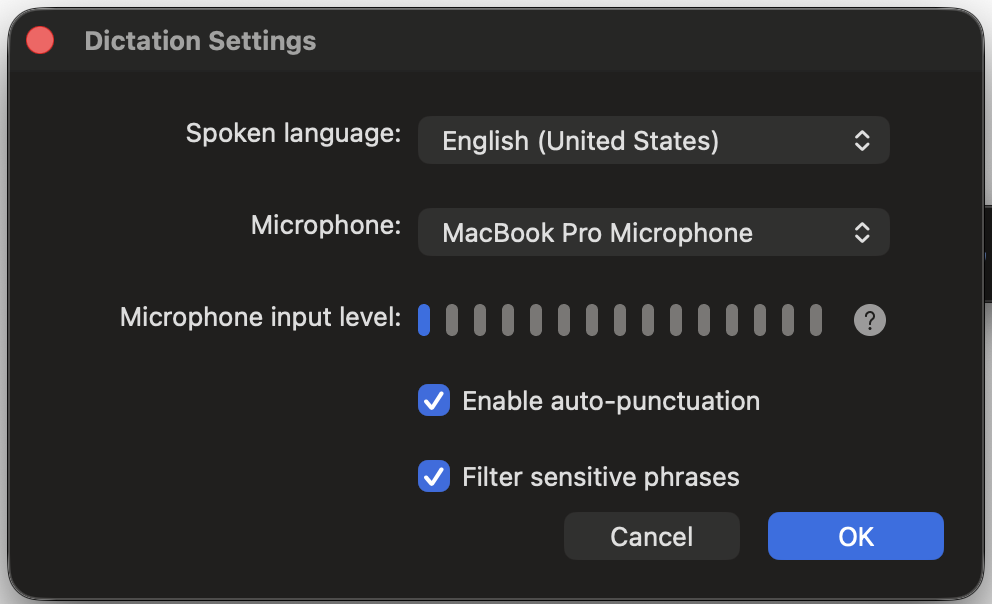
Setting it up
The exercise has to be done in English: the English voice commands do
not work on French text, and the French commands exist but do less. Set the
dictation language to “English (United States)” or another English variety:
open Word and go to the Home tab;
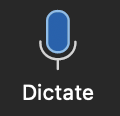
click the Dictate button (microphone icon);
click the gear icon (settings);
under “Spoken Language”, select English (United States);
turn on Auto punctuation to begin with (you will also try it off);
leave Filter sensitive phrases on.
Figure 1. The Dictate button Figure 2. The settings of Word's Dictate feature
Turning dictation on
The Dictate button on the Home tab is the way in on every platform. On
Windows there is also a keyboard shortcut, Alt + ` (tilde key); a Mac has no
Alt key and Microsoft’s own steps there give only the button.
Figure 3. Where the Dictate button sits on the Word ribbon (Home tab)
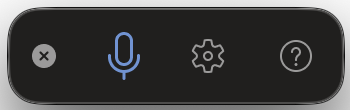
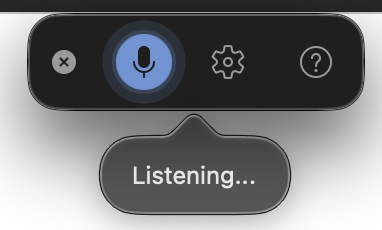
A floating toolbar appears, with a microphone (start and stop), a
“Listening” indicator while dictation is running, the gear icon for the
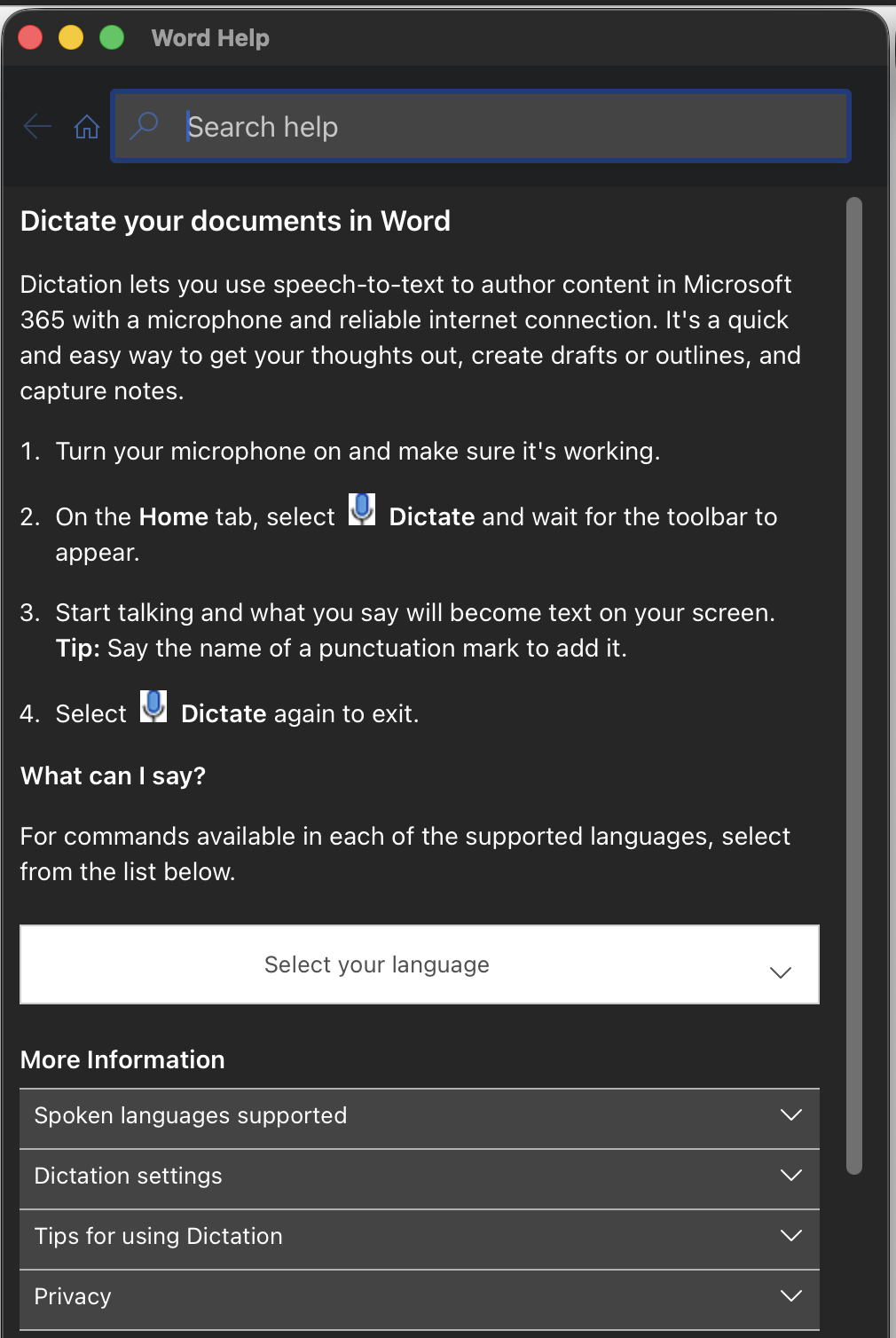
settings and a help button (?) listing the commands.
Figure 4. The floating toolbar of the Dictate feature Figure 5. The same toolbar while dictation is running
The voice commands you need
With Auto punctuation on, Word places full stops and commas itself; with
it off, every mark has to be dictated with the commands below. Run the
practice exercise both ways: the difference shows how much of the punctuation
you would be dictating in real work, and how often the automatic version puts
a mark where you did not want one.
Punctuation:
Say
Result
“period” or “full stop”
.
“comma”
,
“question mark”
?
“exclamation mark”
!
“colon”
:
“semicolon”
;
“open quotes” … “close quotes”
”…”
“new line”
new line
Editing:
Say
Action
“delete”
deletes the last word or mark
“delete that”
deletes the last sentence dictated
“delete [word or phrase]”
deletes a specific word or phrase
“select [word/phrase]”
selects text
“backspace [1-100]”
deletes that many characters back
“undo”
undoes the last action
Formatting:
Say
Action
“bold [word/phrase]” or “bold that”
sets in bold
“italicize [word/phrase]”
sets in italics
“underline [word/phrase]”
underlines
“start list”
starts a bulleted list
“start numbered list”
starts a numbered list
“exit list”
ends the list
Figure 6. The (?) button on the toolbar opens Word's own help, where the command list is given per language
L’exercice doit être effectué en anglais : les commandes vocales
anglaises ne fonctionnent pas sur du texte français, et les commandes
françaises existent mais sont plus limitées. Configurez la langue de dictée
sur « English (United States) » ou une autre variante anglaise :
ouvrez Word et allez dans l’onglet Accueil (Home) ;
cliquez sur le bouton Dicter (Dictate, icône de microphone) ;
cliquez sur l’icône d’engrenage (paramètres) ;
sous « Spoken Language », sélectionnez English (United States) ;
activez Auto punctuation pour commencer (vous l’essaierez aussi désactivée) ;
laissez Filter sensitive phrases activé.
Figure 1. Le bouton Dicter Figure 2. Paramètres de la fonction Dicter dans Word
Activer la dictée
Le bouton Dicter de l’onglet Accueil fonctionne sur toutes les
plateformes. Sous Windows, il existe aussi un raccourci clavier, Alt + `
(touche tilde) ; un Mac n’a pas de touche Alt, et les étapes de Microsoft n’y
donnent que le bouton.
Figure 3. Emplacement du bouton Dicter dans le ruban Word (onglet Accueil)
Une barre d’outils flottante apparaît, avec un microphone (démarrer et
arrêter), un indicateur « Listening » quand la dictée est active, l’icône
d’engrenage des paramètres et un bouton d’aide (?) listant les commandes.
Figure 4. La barre d'outils flottante de la fonction Dicter Figure 5. La même barre pendant que la dictée tourne
Commandes vocales essentielles (en anglais)
Avec Auto punctuation activée, Word place lui-même les points et les
virgules ; sans elle, chaque signe doit être dicté avec les commandes
ci-dessous. Faites l’exercice de pratique des deux façons : la différence
montre quelle part de la ponctuation vous auriez à dicter dans un vrai
travail, et à quelle fréquence la version automatique place un signe dont
vous ne vouliez pas.
Ponctuation :
Dire
Résultat
“period” ou “full stop”
.
“comma”
,
“question mark”
?
“exclamation mark”
!
“colon”
:
“semicolon”
;
“open quotes” … “close quotes”
”…”
“new line”
nouvelle ligne
Édition :
Dire
Action
“delete”
supprime le dernier mot ou signe
“delete that”
supprime la dernière phrase dictée
“delete [word or phrase]”
supprime un mot ou une expression
“select [word/phrase]”
sélectionne du texte
“backspace [1-100]”
supprime ce nombre de caractères vers l’arrière
“undo”
annule la dernière action
Mise en forme :
Dire
Action
“bold [word/phrase]” ou “bold that”
met en gras
“italicize [word/phrase]”
met en italique
“underline [word/phrase]”
souligne
“start list”
démarre une liste à puces
“start numbered list”
démarre une liste numérotée
“exit list”
termine la liste
Figure 6. Le bouton (?) de la barre ouvre l'aide de Word, où la liste des commandes est donnée par langue
Assignment: correcting a memo by voiceTravail : corriger un mémo à la voix
Practice exercise (5 min, not graded)
Copy the following text into Word and make the corrections by voice alone:
The cat sat on the matThe dog was happpy[ADD: Insert a sentence about birds here]Make the word cat bold
Add a period after “mat”.
Remove one “p” from “happpy”.
Add the missing sentence: “The birds flew over the trees.”
Set the word “cat” in bold.
Practise first with auto punctuation on, then try without it, to see the
difference.
Main exercise (20 min)
The situation. You are an intern at TranslatoCorp International, a
translation agency that has just adopted a dictation-only policy following a
mysterious outbreak of finger cramps. The CEO, Mr. Verbatim, has dictated a
memo, but the recognition system had a few mishaps. Your mission: correct
the memo using voice commands only.
What is allowed:
copying and pasting the initial text into Word;
using the mouse or keyboard to navigate (place the cursor, scroll);
clicking to put the cursor at the exact place of a change.
What is not allowed:
typing text on the keyboard;
using the Delete or Backspace keys;
using Ctrl+B, Ctrl+I or other formatting shortcuts;
any entry or change of text other than by voice command.
A tip: to add punctuation in the middle of a sentence, click at the place
you want with the mouse, then dictate the punctuation (“comma”).
Text to correct:
URGENT MEMO TO ALL TRANSLATORSFrom the desk of CEO Maximilian VerbatimDear translation minions[INSERT: Add greeting about the weather being perfect for translation]As you know our company motto is Accuracy Speed and cofffee We pride ourselves on deliveringtranslations faster than a caffeinated cheetah running from an angry proofreaderRecent UpdatesYesterday we successfully translated the entire works of Shakespeare into emojiOur new office mascot is a parrot named PolyglottThe coffee machine now speaks seventeen languages but still makes terrible espresso[INSERT: Add a sentence about our new virtual reality translation booths]Important RemindersPlease stop using Google Translate to translate the lunch menu from FrenchThe term deadline is not meant to be taken literally despite what project managers sayRemember machine translation is our friend not our replacment[INSERT: Add final motivational sentence]Best regardsMax VerbatimCEO and Chief Word WranglerPS The office plants need watering They are looking as dry as academic prose
Corrections to make, by voice only:
Punctuation: a colon after “Dear translation minions”; commas in
“Accuracy Speed and coffee”; periods at the end of the sentences that
lack them.
first [INSERT]: “Good morning everyone! The weather is perfect for
indoor translation work.”
second [INSERT]: “Our new VR booths let you translate while pretending
to be on a tropical beach.”
third [INSERT]: “Together, we shall conquer the Tower of Babel, one
mistranslation at a time!”
Formatting: “URGENT MEMO TO ALL TRANSLATORS” in bold; “Polyglott” in
italics; the three points under “Recent Updates” as a bulleted list; the
three points under “Important Reminders” as a numbered list.
Navigation and editing: delete “and Chief Word Wrangler” after CEO;
add an exclamation mark after “as dry as academic prose”.
Reflection (to be dictated in Word)
Once the exercise is done, dictate your answers to the following questions
straight into the same document (100 to 150 words in total):
Difficulties encountered. Which voice commands were the hardest to use, and
why?
Expectations and reality. Was the exercise easier or harder than you
expected? Why?
Recognition accuracy. Was everything recognized as you intended?
Which kinds of word or phrase caused trouble?
Practical application. From this experience, do you think dictation
would improve your translation workflow? Justify your answer briefly.
The reflection has to be dictated as well: it is one more chance to observe
how the system handles a more natural, conversational text.
What to produce: a single Word document containing the corrected memo and
your dictated reflection.
Exercice de pratique (5 min, non noté)
Copiez le texte suivant dans Word et effectuez les corrections uniquement à
la voix :
The cat sat on the matThe dog was happpy[ADD: Insert a sentence about birds here]Make the word cat bold
Ajoutez un point après « mat ».
Supprimez un « p » dans « happpy ».
Ajoutez la phrase manquante : « The birds flew over the trees. »
Mettez le mot « cat » en gras.
Pratiquez d’abord avec l’auto-ponctuation activée, puis essayez sans, pour
voir la différence.
Exercice principal (20 min)
Contexte. Vous êtes stagiaire chez TranslatoCorp International, une
agence de traduction qui vient d’adopter une politique « tout-dictée » à la
suite d’une épidémie mystérieuse de crampes des doigts. Le PDG, M. Verbatim,
a dicté une note de service, mais le système de reconnaissance a connu
quelques ratés. Votre mission : corriger le mémo en utilisant uniquement des
commandes vocales.
Ce qui est permis :
copier-coller le texte initial dans Word ;
utiliser la souris ou le clavier pour naviguer (placer le curseur,
faire défiler) ;
cliquer pour placer le curseur à l’endroit exact d’une modification.
Ce qui n’est pas permis :
taper du texte au clavier ;
utiliser les touches Delete ou Backspace ;
utiliser Ctrl+B, Ctrl+I ou d’autres raccourcis de mise en forme ;
toute saisie ou modification de texte autrement que par commandes vocales.
Astuce : pour ajouter de la ponctuation au milieu d’une phrase, cliquez à
l’endroit voulu avec la souris, puis dictez la ponctuation (« comma »).
Texte à corriger :
URGENT MEMO TO ALL TRANSLATORSFrom the desk of CEO Maximilian VerbatimDear translation minions[INSERT: Add greeting about the weather being perfect for translation]As you know our company motto is Accuracy Speed and cofffee We pride ourselves on deliveringtranslations faster than a caffeinated cheetah running from an angry proofreaderRecent UpdatesYesterday we successfully translated the entire works of Shakespeare into emojiOur new office mascot is a parrot named PolyglottThe coffee machine now speaks seventeen languages but still makes terrible espresso[INSERT: Add a sentence about our new virtual reality translation booths]Important RemindersPlease stop using Google Translate to translate the lunch menu from FrenchThe term deadline is not meant to be taken literally despite what project managers sayRemember machine translation is our friend not our replacment[INSERT: Add final motivational sentence]Best regardsMax VerbatimCEO and Chief Word WranglerPS The office plants need watering They are looking as dry as academic prose
Corrections à effectuer, à la voix uniquement :
Ponctuation : deux-points après « Dear translation minions » ; virgules
dans « Accuracy Speed and coffee » ; points à la fin des phrases qui en
manquent.
Orthographe : « cofffee » devient « coffee » ;
« replacment » devient « replacement ».
Ajouts de texte :
premier [INSERT] : « Good morning everyone! The weather is perfect for
indoor translation work. »
deuxième [INSERT] : « Our new VR booths let you translate while
pretending to be on a tropical beach. »
troisième [INSERT] : « Together, we shall conquer the Tower of Babel,
one mistranslation at a time! »
Mise en forme : « URGENT MEMO TO ALL TRANSLATORS » en gras ;
« Polyglott » en italique ; les trois points sous « Recent Updates » en liste
à puces ; les trois points sous « Important Reminders » en liste numérotée.
Navigation et édition : supprimez « and Chief Word Wrangler » après
CEO ; ajoutez un point d’exclamation après « as dry as academic prose ».
Réflexion (à dicter dans Word)
Une fois l’exercice terminé, dictez vos réponses aux questions suivantes
directement dans le même document (100 à 150 mots au total) :
Difficultés rencontrées. Quelles commandes vocales ont été les plus
difficiles à utiliser, et pourquoi ?
Attentes et réalité. L’exercice était-il plus facile ou plus
difficile que prévu ? Pourquoi ?
Précision de la reconnaissance. Tout a-t-il été reconnu comme prévu ?
Quels types de mots ou de phrases ont posé problème ?
Application pratique. À partir de cette expérience, pensez-vous que
la dictée améliorerait votre flux de travail de traduction ? Justifiez
brièvement.
La réflexion aussi doit être dictée : c’est une occasion supplémentaire
d’observer comment le système gère un texte plus naturel et conversationnel.
À produire : un document Word unique contenant le mémo corrigé et votre
réflexion dictée.
Demo: live captions in PowerPointDémo : sous-titres en direct dans PowerPoint
Before you start with PowerPoint
Requirements: PowerPoint for Microsoft 365 (desktop version), a working
microphone and a quiet environment. Estimated time: 25 minutes.
What you will do:
trying out live transcription of a spoken presentation;
testing real-time translation (French to English);
gauging the effect of various factors on caption quality;
comparing monolingual captioning against live machine translation.
Setting up the tool (5 min)
Figure 7. The subtitle options on the Slide Show tab of the PowerPoint ribbon
Open PowerPoint (the desktop version, not the web version).
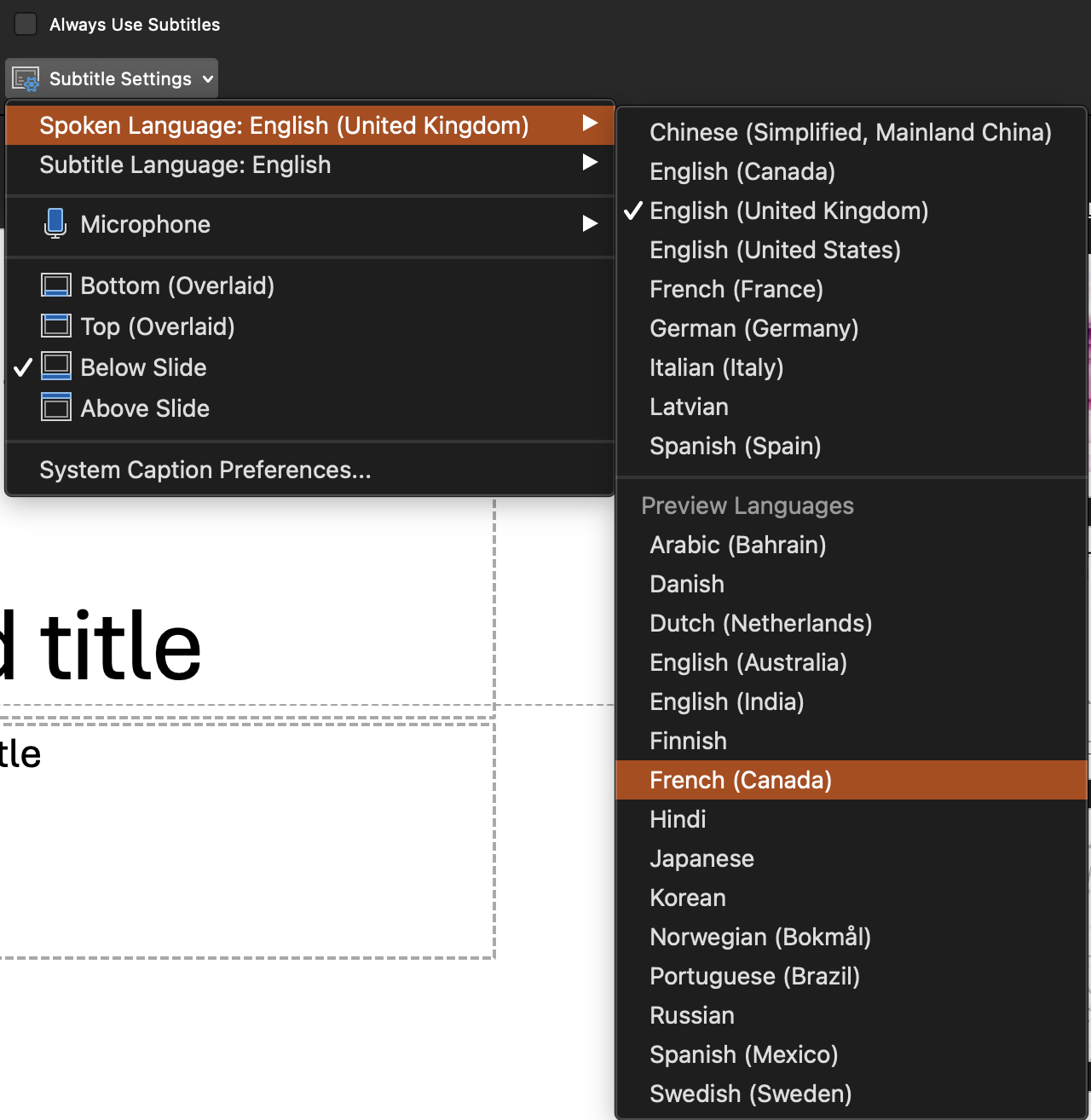
Spoken Language: check whether “French (Canada)” is available; if not,
use “French” or “French (France)”. Whether Canadian French is offered
varies by version.
Subtitle Language: the same language as the spoken one for test 1;
English for test 2.
Position: “Below Slide” (recommended).
Microphone: select your main microphone.
Test your microphone before you start: in the system settings, make sure the
input level is right, neither too low nor saturated.
Prérequis : PowerPoint pour Microsoft 365 (version bureau), un microphone
fonctionnel et un environnement calme. Durée estimée : 25 minutes.
Ce que vous ferez :
expérimenter la transcription en direct d’une présentation orale ;
tester la traduction en temps réel (français → anglais) ;
évaluer l’impact de différents facteurs sur la qualité des sous-titres ;
comparer sous-titrage monolingue et traduction automatique en direct.
Configurer l’outil (5 min)
Figure 7. Les options de sous-titres dans l'onglet Diaporama du ruban PowerPoint
Ouvrez PowerPoint (version bureau, pas la version web).
Allez à l’onglet Diaporama (Slide Show) dans le ruban.
Cochez « Toujours utiliser les sous-titres » (Always Use Subtitles).
Cliquez sur « Paramètres de sous-titres » (Subtitle Settings) pour configurer.
Figure 8. Paramètres de sous-titres : langue parlée, langue des sous-titres, position, microphone
Paramètres à configurer :
Langue parlée (Spoken Language) : vérifiez si « Français (Canada) » est disponible ;
sinon, utilisez « Français » ou « Français (France) ». La disponibilité du
français canadien varie selon les versions.
Langue des sous-titres (Subtitle Language) : la même langue que la langue parlée pour le
test 1 ; l’anglais pour le test 2.
Position : « Sous la diapositive » (Below Slide, recommandé).
Microphone : sélectionnez votre micro principal.
Testez votre microphone avant de commencer : dans les paramètres du système,
assurez-vous que le niveau d’entrée est adéquat, ni trop faible ni saturé.
Assignment: captioning a presentationTravail : sous-titrer une présentation
The exercise (20 min)
Use the PowerPoint file on the theme of TranslatoCorp International
(continuing the example from the Word demo), that is
available on StudiUM. It contains 6 slides with diverse challenges for the
captioning:
Title and introduction (normal text): “TranslatoCorp International
announces a strategic merger”.
Key figures (normal text): a test of numbers, amounts, percentages.
New AI technology (normal text): technical terminology and acronyms
(NMT, BERT, GPT).
Transition (text turned into an image): from this slide on,
PowerPoint can no longer read the text to improve the captions; watch for
the difference in quality.
Distance and rate test (text turned into an image): move away from
the microphone (about a metre) and read the text quickly.
Accent test (text turned into an image): exaggerate your Québec
accent (or another one); the slide gathers what recognition struggles
with, place and personal names (Hull, Sept-Îles, Jean-François
Bérubé-Lépine), long rare words (“hyperparamétrisation”) and words with
variable pronunciation (“août”).
Test 1: monolingual captioning (French to French)
Set spoken language = subtitle language = French.
Start the slide show (F5).
Present each slide by reading the text provided: normally for the first
three, then following the instructions given on the last three.
Take at least one screenshot showing the captions.
Test 2: live translation (French to English)
Set spoken language = French, subtitle language = English.
Repeat exactly the same presentation.
Take at least one screenshot showing the captions.
Ground rules: do not change the text on the slides; follow the distance, rate and
accent instructions given on the last two slides; make sure the captions are visible in
your screenshots.
What to produce: screenshots and a reflection
Screenshots: at least one per test.
A reflection (150 to 200 words) covering the following points:
Transcription accuracy: which kinds of error in monolingual mode?
Give two or three precise examples.
Effect of the slide text: did you notice a difference between
the first three slides (text) and the last three (images)?
Translation quality: was the translation into English
understandable? Were the technical terms translated well?
Performance factors: what effect did distance, speed and, where
applicable, accent have?
Practical application: would this feature be useful for your own
professional presentations? In which settings, and with what limits?
L’exercice (20 min)
Utilisez le fichier PowerPoint sur le thème de
TranslatoCorp International (suite de l’exemple de la
démo Word), disponible sur StudiUM. Il contient six
diapositives présentant des défis variés pour le sous-titrage :
Titre et introduction (texte normal) : « TranslatoCorp International
annonce une fusion stratégique ».
Chiffres clés (texte normal) : test des nombres, montants,
pourcentages.
Nouvelle technologie IA (texte normal) : terminologie technique et
sigles (NMT, BERT, GPT).
Transition (texte converti en image) : à partir de cette diapositive,
PowerPoint ne peut plus lire le texte pour améliorer les sous-titres ;
observez la différence de qualité.
Test de distance et de débit (texte converti en image) :
éloignez-vous du microphone (environ 1 mètre) et parlez rapidement en
lisant le texte.
Test d’accent (texte converti en image) : exagérez votre accent
québécois (ou autre) ; la diapositive réunit ce qui met la reconnaissance
en difficulté, des noms de lieux et de personnes (Hull, Sept-Îles,
Jean-François Bérubé-Lépine), des mots longs et rares
(« hyperparamétrisation ») et des mots à prononciation variable
(« août »).
Test 1 : sous-titrage monolingue (français → français)
Configurez langue parlée = langue des sous-titres = français.
Lancez le diaporama (F5).
Présentez chaque diapositive en lisant le texte fourni : normalement pour
les trois premières, puis en suivant les instructions données sur les
trois dernières.
Capturez au moins une capture d’écran montrant les sous-titres.
Test 2 : traduction en direct (français → anglais)
Configurez langue parlée = français, langue des sous-titres = anglais.
Répétez exactement la même présentation.
Capturez au moins une capture d’écran montrant les sous-titres.
À respecter : ne modifiez pas le texte des diapositives ; suivez les
instructions de distance, de débit et d’accent données sur les deux
dernières diapositives ;
assurez-vous que les sous-titres sont visibles sur vos captures.
À produire : des captures et une réflexion
Captures d’écran : au moins une par test.
Réflexion (150 à 200 mots) abordant les points suivants :
Précision de la transcription : quels types d’erreurs en mode
monolingue ? Donnez deux ou trois exemples précis.
Impact du texte des diapositives : avez-vous remarqué une
différence entre les trois premières diapositives (texte) et les trois
dernières (images) ?
Qualité de la traduction : la traduction vers l’anglais était-elle
compréhensible ? Les termes techniques ont-ils été bien traduits ?
Facteurs de performance : quel effet ont eu la distance, la
vitesse et, le cas échéant, l’accent ?
Application pratique : cette fonctionnalité serait-elle utile pour
vos présentations professionnelles ? Dans quels contextes, avec
quelles limites ?
Demo: video translation with HeyGenDémo : traduction vidéo avec HeyGen
Before you start with HeyGen
HeyGen is a commercial AI video translation platform: it transcribes the
audio track, translates it, generates a cloned voice in the target language
and resynchronizes the lips. The company advertises support for more than
175 languages; a free tier exists, with limited credits.
Estimated time: 30 minutes.
What you will do:
trying out speech-to-speech translation applied to video;
assessing the quality of the voice cloning and the lip synchronization;
understanding the trade-offs between automation and quality;
thinking through the ethical implications of voice cloning.
Data confidentiality: read this before you start
HeyGen is a commercial service whose terms for the use of data have to be
understood before you use it. According to its privacy policy (updated
11 August 2026):
HeyGen collects “user inputs”: videos, images, voices and scripts
uploaded;
for non-enterprise accounts, free accounts among them, these data may be
used to train and improve the service’s models;
enterprise accounts are governed by separate contracts and are exempt;
HeyGen states that it does not sell personal data to third parties;
you can request the deletion of your data, which HeyGen aims to process
within 72 hours.
Concretely, for this exercise: if you use a free account with your own
video, your face, your voice and anything visible or audible in it could
serve to train the models. Opting out is possible, but you have to ask for
it; after the exercise, you can request the deletion of your account and
your data.
What to avoid, without exception:
uploading video of identifiable people without their explicit, informed
consent;
including client work or confidential information;
using your own image if the potential use for training makes you
uncomfortable.
Create a free account (an email address is required).
Check your email and log in to the dashboard.
The free tier gives a limited credit: find your way through the steps below
before launching a translation, so that you do not waste your credits. If you
run into technical problems, document them in your reflection.
The path through the interface
Screenshots taken on 2 September 2026 and 3 September 2026: HeyGen’s interface changes
often, so expect differences.
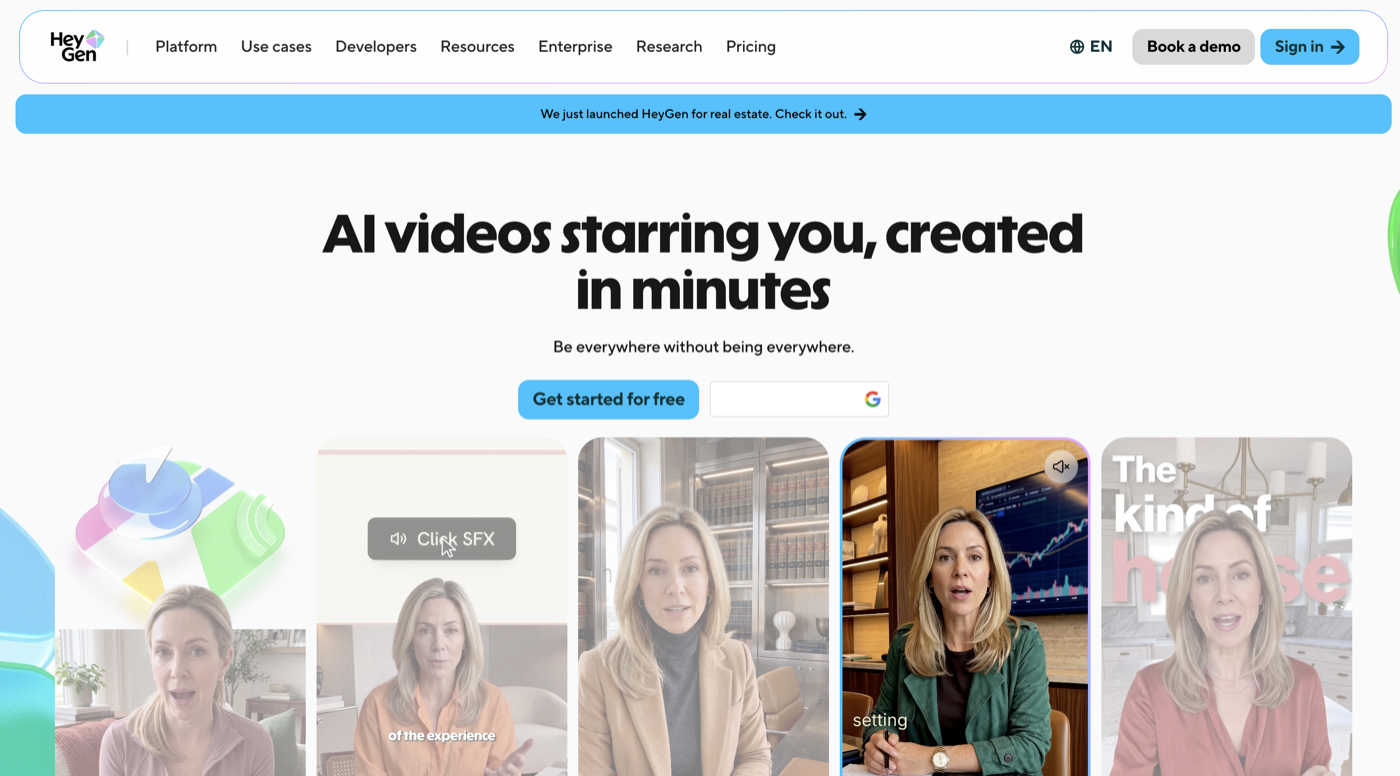
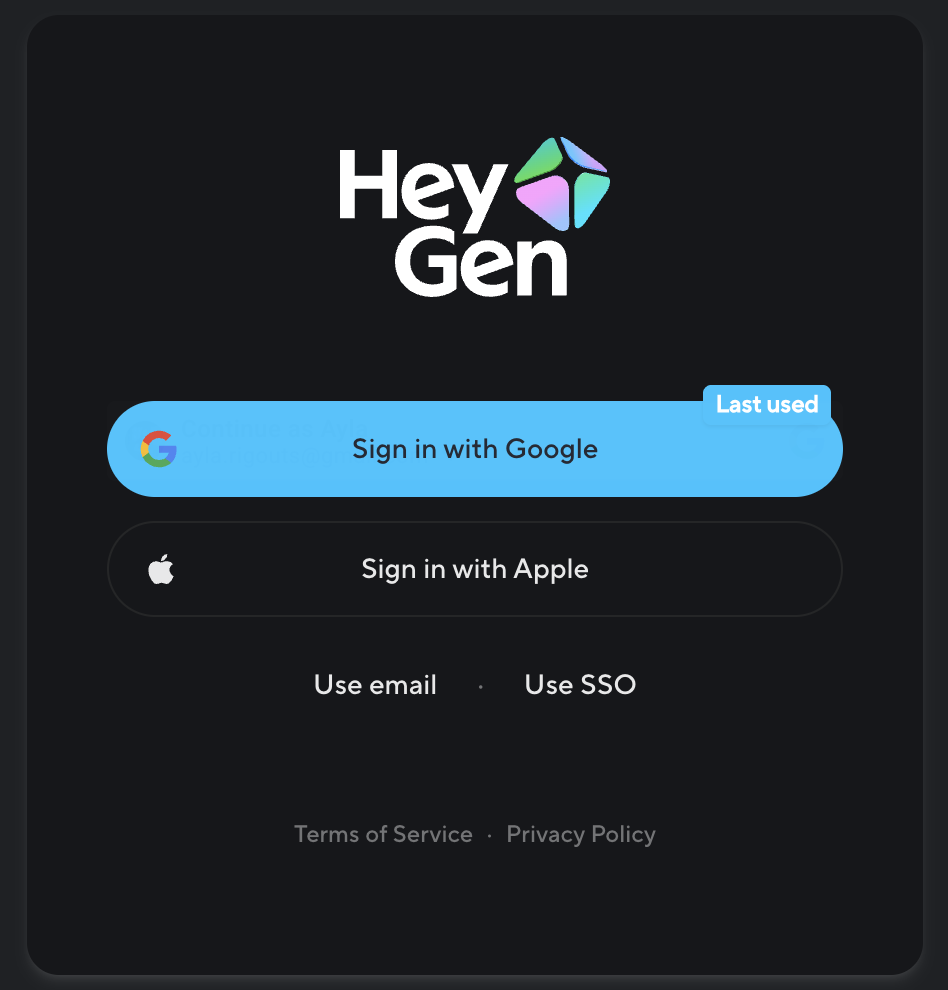
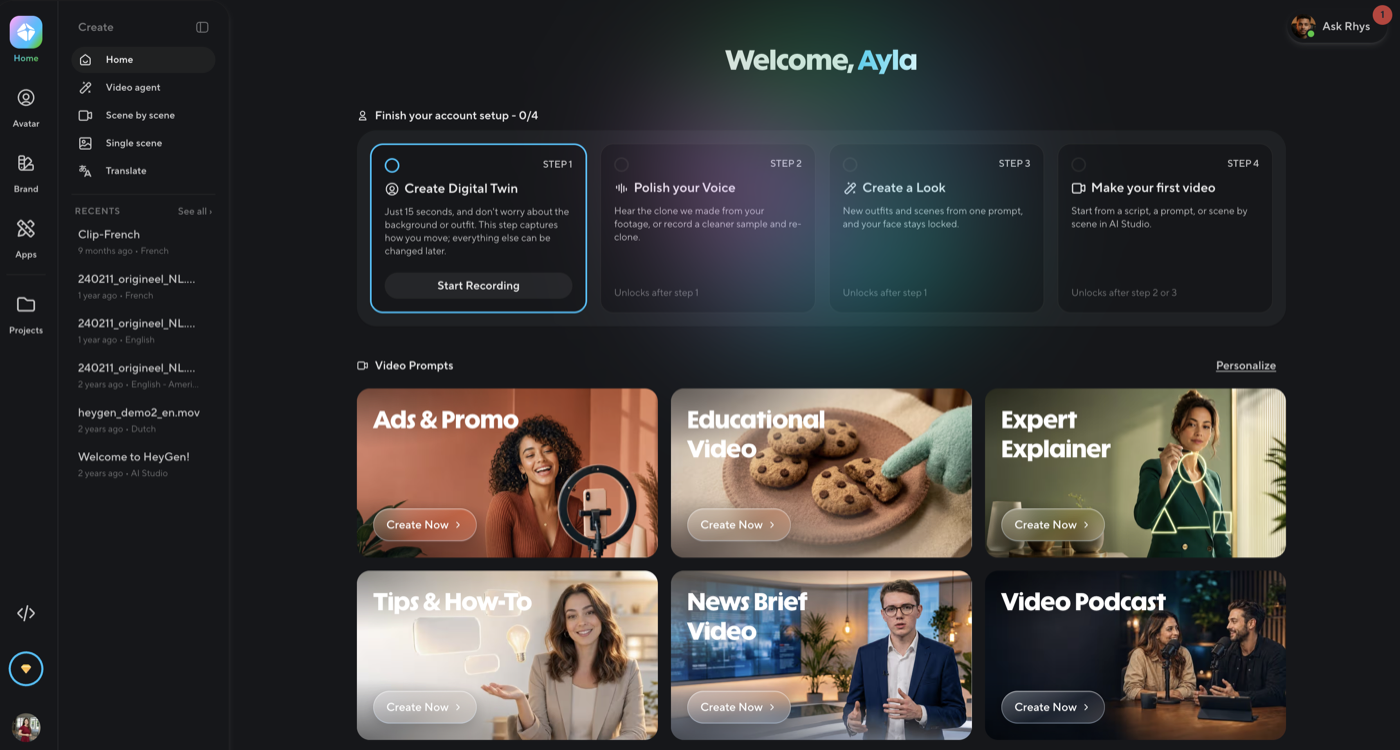
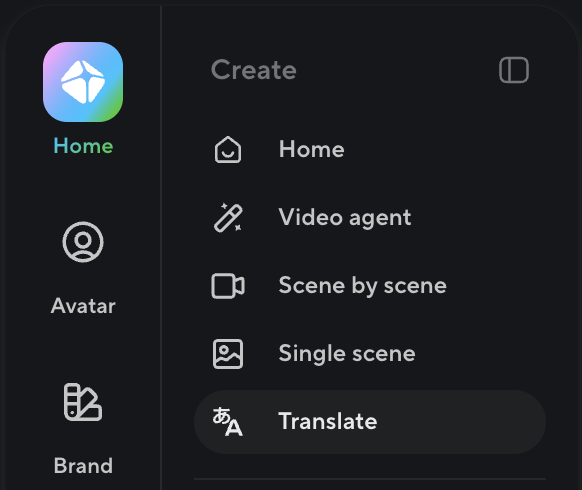
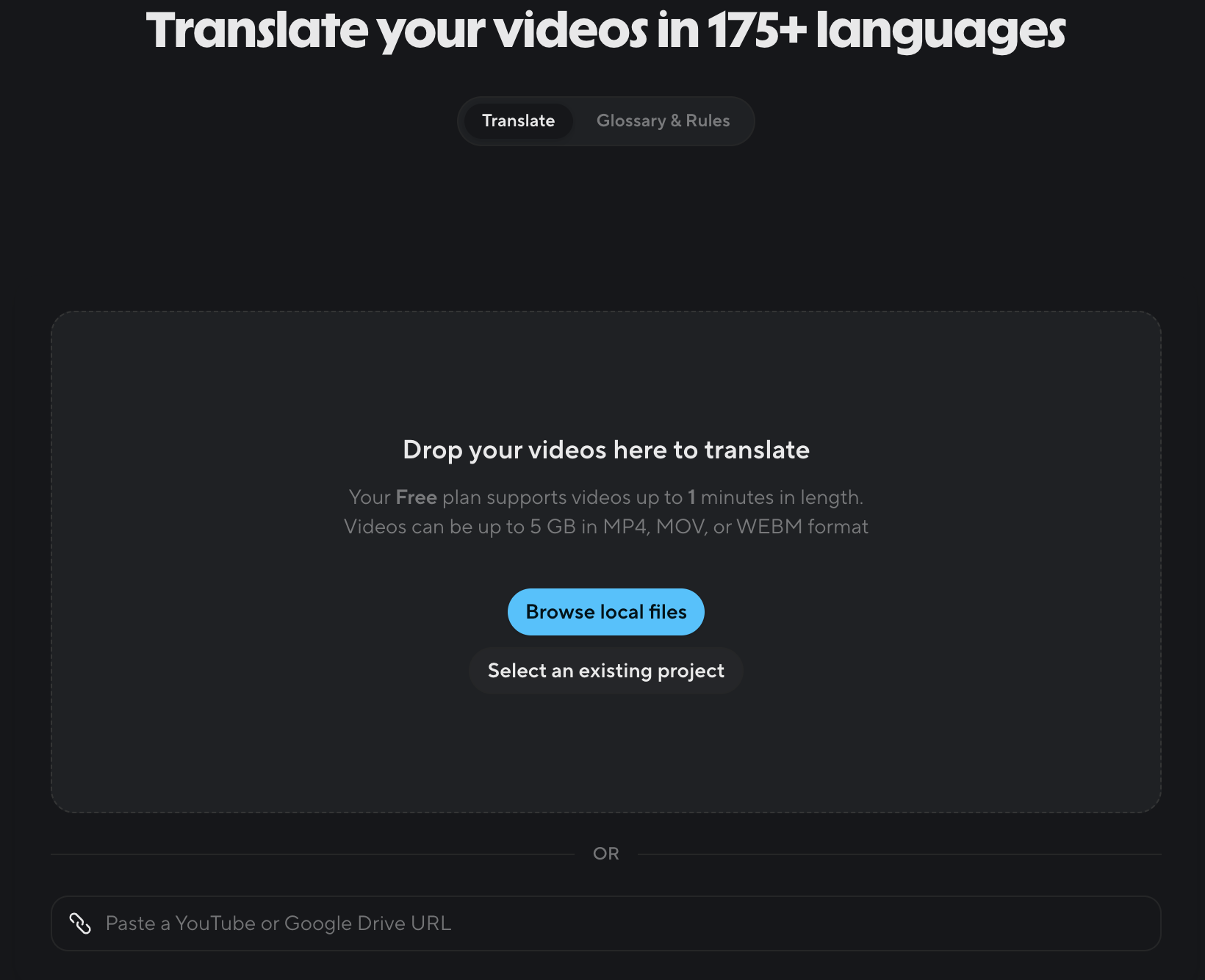
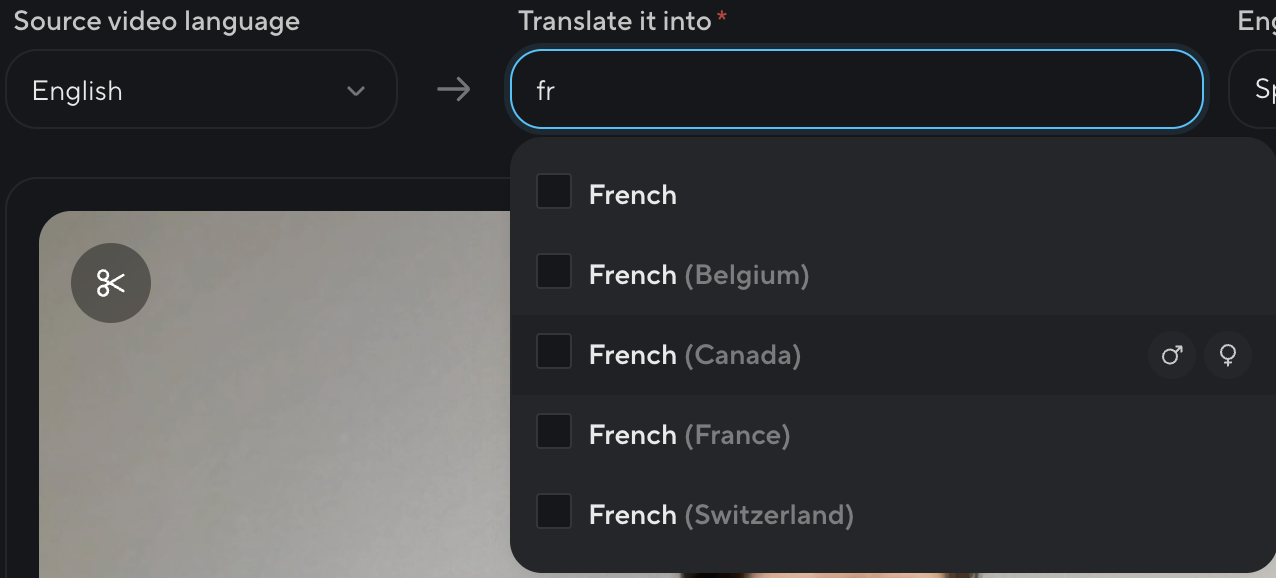
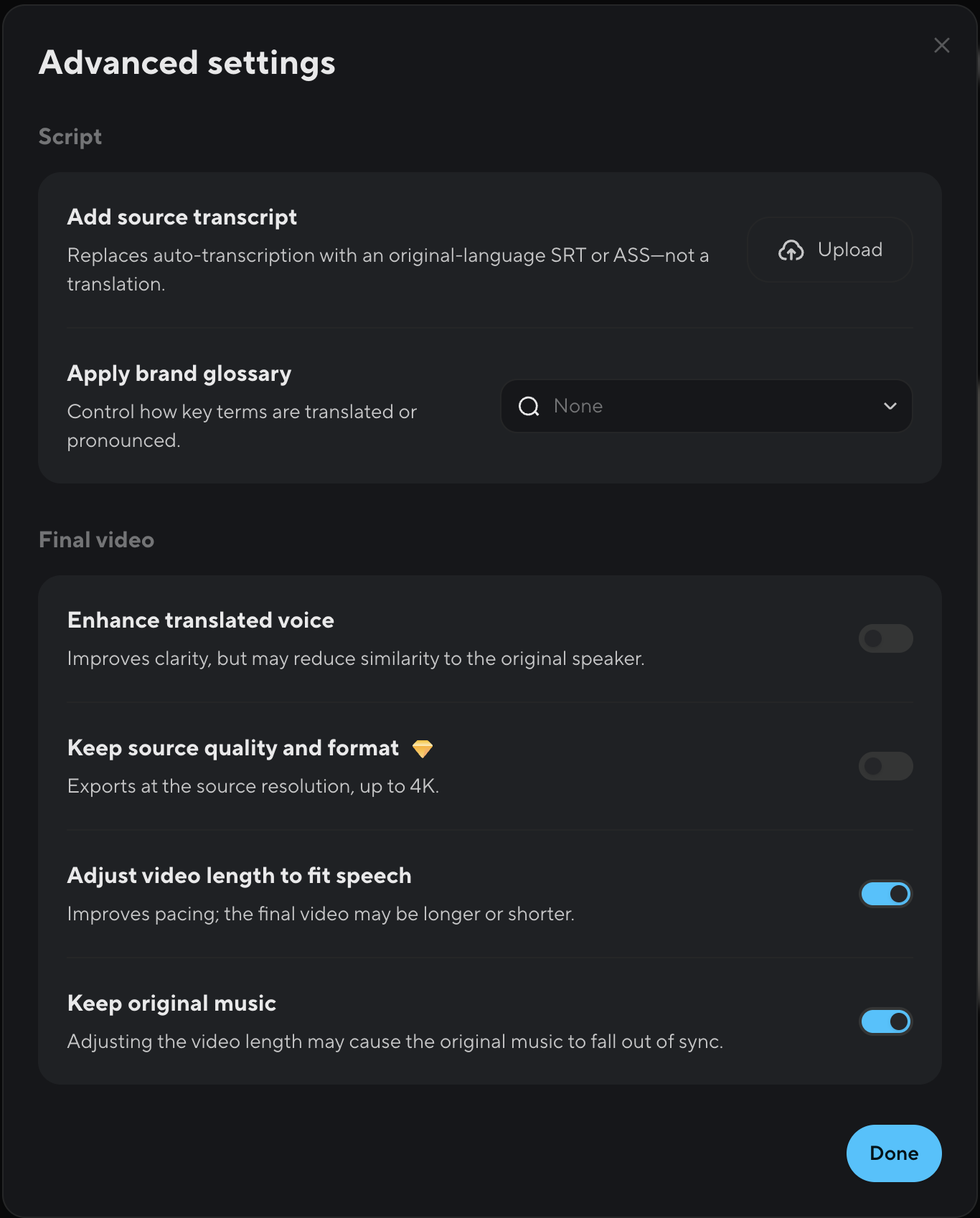
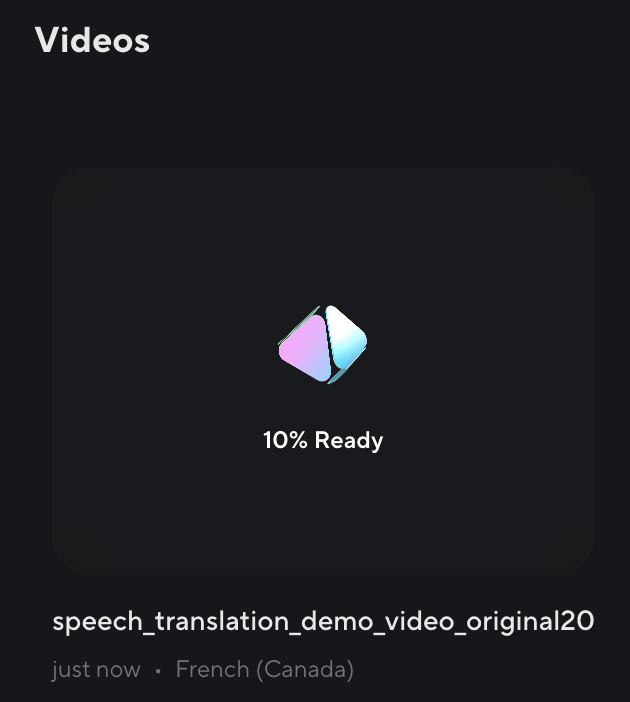
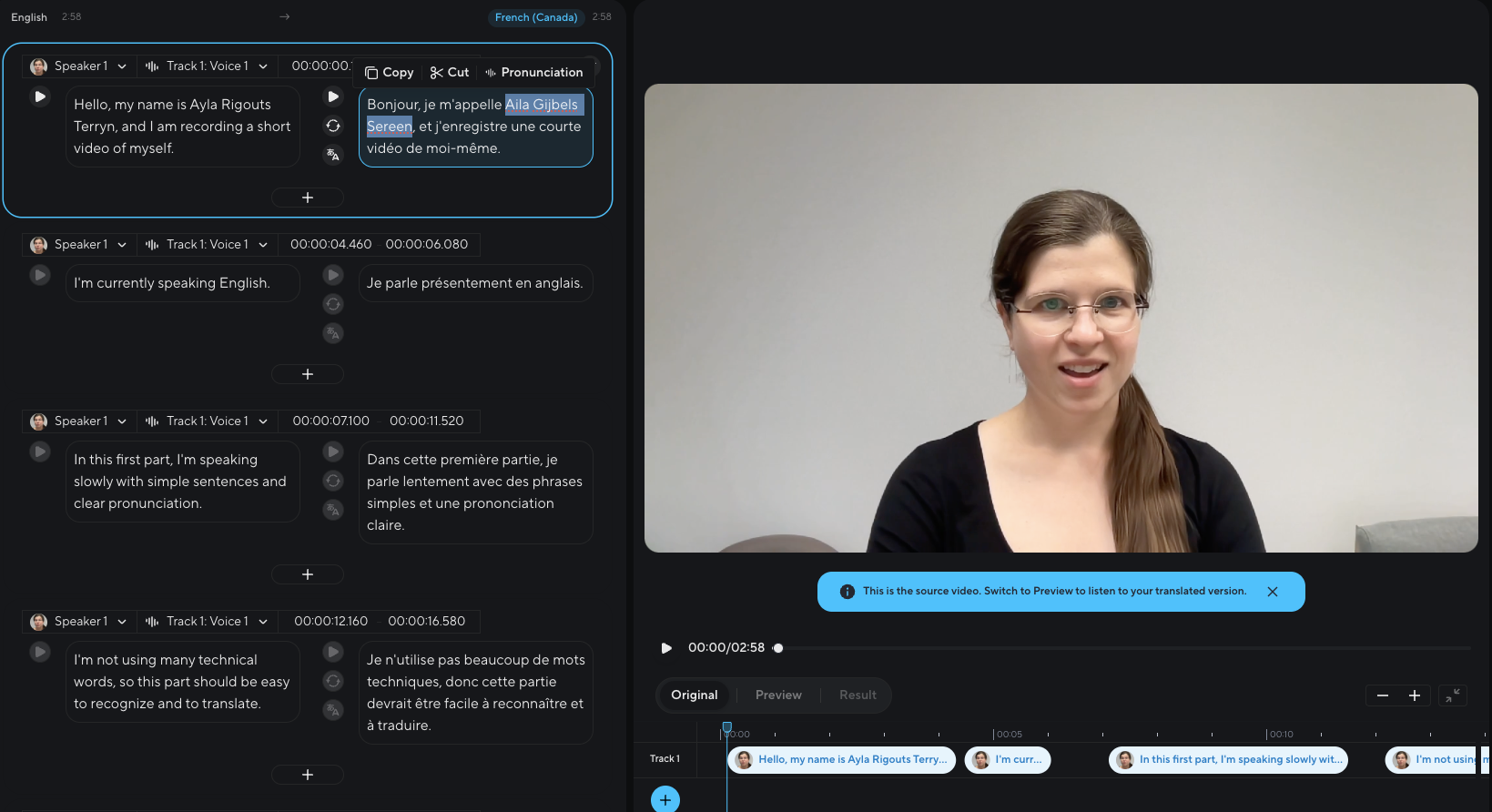
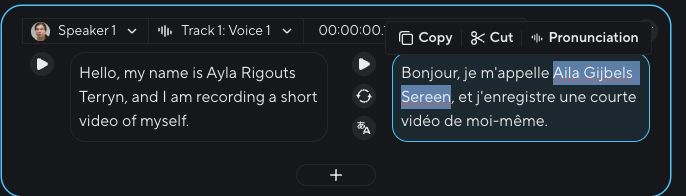
Figure 9. On heygen.com, “Get started for free” or “Sign in” open the service. Figure 10. Signing in goes through Google, Apple, an email address (“Use email”) or an institutional account. Email avoids linking your Google or Apple account. Figure 11. After signing in, the home screen is mostly about creating videos; translation sits in the menu on the left. Figure 12. In the Create menu, choose Translate. Figure 13. Drop the video in or paste a YouTube or Google Drive link. The free tier takes one minute of video at most, up to 5 GB, in MP4, MOV or WEBM. Figure 14. Give the language of the video, then the target language: Canadian French is offered, with a choice of a male or a female voice. Figure 15. The advanced settings: the brand glossary and the export at source resolution need a paid plan, while adjusting the length to the speech and keeping the original music are on by default and change the result. Figure 16. Processing is followed from the video list; it takes several minutes. Figure 17. On a paid plan, the editor shows the transcript and the translation segment by segment, with playback of each segment, correction of the target text and a pronunciation control. Figure 18. The first segment, enlarged: “Ayla Rigouts Terryn” has become “Aila Gijbels Sereen”.
HeyGen est une plateforme commerciale de traduction vidéo par IA : elle
transcrit la piste audio, la traduit, génère une voix clonée dans la langue
cible et resynchronise les lèvres. L’éditeur annonce la prise en charge de
plus de 175 langues ; un niveau gratuit existe, avec des crédits limités.
Durée estimée : 30 minutes.
Ce que vous ferez :
expérimenter la traduction parole à parole appliquée à la vidéo ;
évaluer la qualité du clonage vocal et de la synchronisation labiale ;
comprendre les compromis entre automatisation et qualité ;
réfléchir aux implications éthiques du clonage vocal.
Confidentialité des données : à lire avant de commencer
HeyGen est un service commercial dont les conditions d’utilisation des
données doivent être comprises avant usage. Selon sa politique de
confidentialité (mise à jour le 11 août 2026) :
HeyGen collecte les « entrées utilisateur » : vidéos, images, voix et
scripts téléversés ;
pour les comptes non-entreprise, dont les comptes gratuits, ces données
peuvent servir à entraîner et à améliorer les modèles du service ;
les comptes entreprise sont régis par des contrats distincts et exemptés ;
vous pouvez refuser cette utilisation (angl. opt-out) en écrivant à
privacy@heygen.com ;
HeyGen déclare ne pas vendre les données personnelles à des tiers ;
vous pouvez demander la suppression de vos données (traitement visé
sous 72 heures).
Concrètement, pour cet exercice : si vous utilisez un compte gratuit avec
votre propre vidéo, votre visage, votre voix et tout contenu visible ou
audible pourraient servir à l’entraînement des modèles. Le refus est
possible, mais il faut le demander activement ; après l’exercice, vous
pouvez demander la suppression de votre compte et de vos données.
À éviter absolument :
téléverser des vidéos de personnes identifiables sans leur consentement
éclairé explicite ;
inclure du travail de client ou des informations confidentielles ;
utiliser votre propre image si l’utilisation potentielle pour
l’entraînement vous met mal à l’aise.
Vérifiez votre courriel et connectez-vous au tableau de bord.
Le niveau gratuit offre un crédit limité : repérez les étapes ci-dessous
avant de lancer une traduction, pour ne pas gaspiller vos crédits. Si vous
rencontrez des problèmes techniques, documentez-les dans votre réflexion.
Le parcours dans l’interface
Captures d’écran du 2 septembre 2026 et du 3 septembre 2026 : l’interface de HeyGen
change souvent, alors attendez-vous à des écarts.
Figure 9. Sur heygen.com, « Get started for free » ou « Sign in » donnent accès au service. Figure 10. L'authentification passe par Google, Apple, une adresse courriel (« Use email ») ou un compte institutionnel. Le courriel évite de lier votre compte Google ou Apple. Figure 11. Après la connexion, l'accueil propose surtout de créer des vidéos ; la traduction se trouve dans le menu de gauche. Figure 12. Dans le menu Create, choisissez Translate. Figure 13. Déposez la vidéo ou collez un lien YouTube ou Google Drive. Le niveau gratuit accepte une minute de vidéo au maximum, jusqu'à 5 Go, en MP4, MOV ou WEBM. Figure 14. Indiquez la langue de la vidéo, puis la langue cible : le français canadien est proposé, avec le choix d'une voix masculine ou féminine. Figure 15. Les réglages avancés : le glossaire de marque et l'export à la résolution d'origine demandent un abonnement payant, tandis que l'ajustement de la durée à la parole et la conservation de la musique sont actifs par défaut et modifient le résultat. Figure 16. Le traitement se suit depuis la liste des vidéos ; il prend plusieurs minutes. Figure 17. Avec un abonnement payant, l'éditeur montre la transcription et la traduction segment par segment, avec la lecture de chaque segment, la correction du texte cible et un réglage de prononciation. Figure 18. Le premier segment, agrandi : « Ayla Rigouts Terryn » est devenu « Aila Gijbels Sereen ».
Assignment: translating a videoTravail : traduire une vidéo
The exercise
Option A: use the video provided (recommended if you have
confidentiality concerns). The short clip on StudiUM, under a minute, is the
one to translate: the two of us in conversation, in French, talking over
each other at one point. Translate it into English, or into another language
you know well enough to analyse and that HeyGen offers. The free tier takes
no more than a minute of video.
The three-minute version I showed in class, with its translation, is in
English and covers six sections of increasing difficulty:
slow, clear speech, simple sentences;
faster speech, simple vocabulary;
accent and code-switching (English and French);
proper nouns and specialized terminology;
movement and variable audio quality;
a summary, back to clear speech.
Option B: create your own video. Only if you are comfortable with the
confidentiality implications set out on the previous page. Specifications: 30 to 60
seconds, in French (for a translation into English or another language you
know well), a clear image and audible sound, facing the camera for the lip synchronization. The video
provided can serve as a model for content and structure.
Then follow the steps of the walkthrough to obtain the translated video, watch
it
attentively against the original, and copy the share link.
What to produce: the video and a reflection
The link to the translated video. Check that the link works: open it
in a private browsing window before submitting it.
A reflection (150 to 300 words) built from the following questions:
Voice quality: did the cloned voice sound natural? Were the
intonation and the rhythm right?
Lip synchronization: did the mouth movements match the speech? Any
lags, any sections better than others?
Two voices: did the tool tell them apart, and give each its own
cloned voice? What happened where they overlap?
Translation quality: any errors? Give precise examples. What about
the technical terms, the numbers, the overall meaning, the fluency of
the target language?
Factors tested: what effect did the accents, the proper nouns, the
numbers and the moment the two voices overlap have?
Practical applications: in which settings would this technology be
useful? Where would it fail? What human revision would be needed?
Ethical concerns: what makes you comfortable or uncomfortable?
What risks for language professionals? What safeguards would be
needed?
Troubleshooting
Video too long: the free tier takes one minute at most; shorten the
video.
Not enough credit: document the problem in your reflection.
Processing failed: check the file format (MP4, MOV or WEBM) and the
audio quality, then try again.
Link not working: check the sharing settings in HeyGen; the link has
to be public or accessible to anyone with the link.
L’exercice
Option A : utiliser la vidéo fournie (recommandé en cas de préoccupations
de confidentialité). Le court extrait déposé sur StudiUM, de moins d’une
minute, est celui à traduire : une conversation entre nous deux, en
français, avec un passage où nous nous coupons la parole. Traduisez-le vers
l’anglais, ou vers une autre langue que vous maîtrisez assez pour l’analyser
et que HeyGen propose. Le niveau gratuit n’accepte pas plus d’une minute de
vidéo.
La version de trois minutes que j’ai montrée en classe, avec sa traduction,
est en anglais et couvre six sections aux défis progressifs :
discours lent et clair, phrases simples ;
discours plus rapide, vocabulaire simple ;
accent et alternance de langues (anglais/français) ;
noms propres et terminologie spécialisée ;
mouvement et qualité audio variable ;
résumé, retour au discours clair.
Option B : créer votre propre vidéo. Uniquement si vous êtes à l’aise
avec les implications de confidentialité exposées à la page précédente.
Spécifications :
30 à 60 secondes, en français (pour une traduction vers l’anglais ou une
autre langue que vous maîtrisez), image claire et audio audible, face caméra pour la synchronisation labiale. La
vidéo fournie peut servir de modèle de contenu et de structure.
Suivez ensuite les étapes du parcours dans l’interface pour obtenir la vidéo
traduite,
regardez-la attentivement en la comparant à l’originale, et copiez le lien
de partage.
À produire : la vidéo et une réflexion
Le lien vers la vidéo traduite. Vérifiez que le lien est accessible :
ouvrez-le dans une fenêtre de navigation privée avant de le remettre.
Une réflexion (150 à 300 mots) à partir des questions suivantes :
Qualité vocale : la voix clonée sonnait-elle naturelle ?
L’intonation et le rythme étaient-ils appropriés ?
Synchronisation labiale : les mouvements de la bouche
correspondaient-ils au discours ? Des décalages, des sections
meilleures que d’autres ?
Deux voix : l’outil les a-t-il distinguées, et a-t-il donné à
chacune sa voix clonée ? Que s’est-il passé là où elles se
chevauchent ?
Qualité de la traduction : des erreurs ? Donnez des exemples
précis. Les termes techniques, les chiffres, le sens global, la fluidité
de la langue cible ?
Facteurs testés : quel effet ont eu les accents, les noms propres,
les chiffres et le moment où les deux voix se chevauchent ?
Applications pratiques : dans quels contextes cette technologie
serait-elle utile ? Où échouerait-elle ? Quelle révision humaine
faudrait-il ?
Préoccupations éthiques : qu’est-ce qui vous met à l’aise ou mal à
l’aise ? Quels risques pour les professionnels de la langue ? Quelles
mesures de protection seraient nécessaires ?
Dépannage
Vidéo trop longue : le niveau gratuit n’accepte qu’une minute ;
raccourcissez la vidéo.
Crédit insuffisant : documentez le problème dans votre réflexion.
Traitement échoué : vérifiez le format du fichier (MP4, MOV ou WEBM) et
la qualité audio, puis réessayez.
Lien inaccessible : vérifiez les paramètres de partage dans HeyGen ;
le lien doit être public ou accessible avec le lien.